Description: Add Users to Your Bb Course
Watch the video at the below link to learn how to add users to your Blackboard Courses:
Add Users to Your Blackboard Course
Manage and enroll users
On the Roster page, access a person's menu. Select Edit member information to open the Member Information panel. You can change anyone's role, deny access to your course, or remove a person from your course. Your institution controls what you can do.
In the panel, you can also update your personal information. Your changes are reflected in your profile and throughout the system. Students can edit their information in the same way.
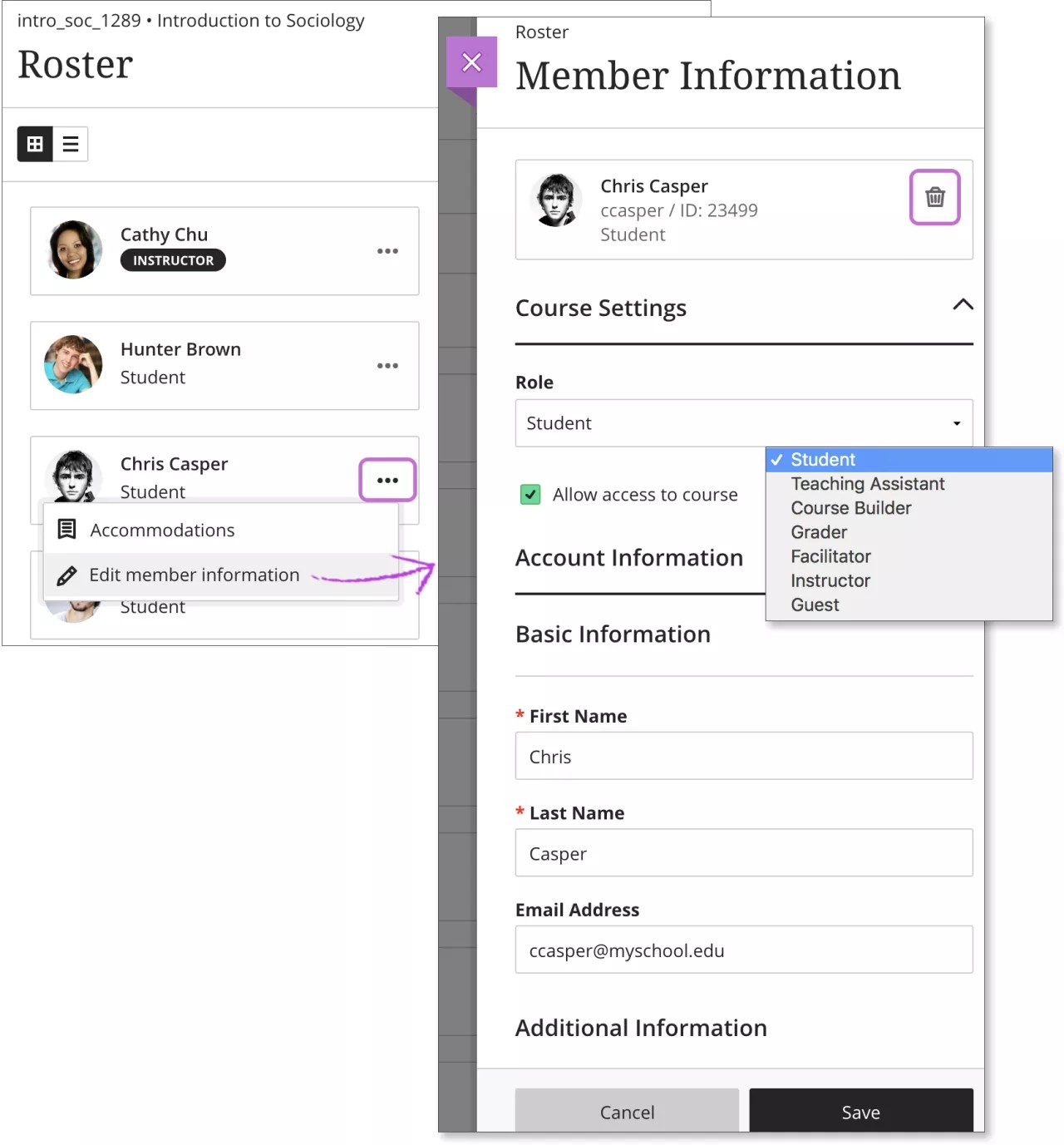
Change roles. When you change a person's role, the person is repositioned in the roster list if you're in Grades view. Roles appear in this order: instructors, teaching assistants, graders, course builders, and students. In Gradable Items view, all members appear in alphabetical order.
Deny access. Clear the check mark for Allow access to course to deny course access yet retain the person's course record and activity. The roster indicates the person's status with a gray profile picture with a diagonal line. The person no longer sees your course on the Courses page.
Note
Administrators make users unavailable at the system level, which is different than when you deny a user access to your course from the roster. Unavailable users at the system level can't log into the system.
Remove people. Select Remove Member to remove a person from your course. This action also deletes all data and grades associated with the person. You'll receive a pop-up confirmation window. To keep the data, you can cancel and deny the person's access to your course instead.
Important
Only a System Administrator can remove an Instructor or a custom course role which is set to act as an Instructor.
Enroll people
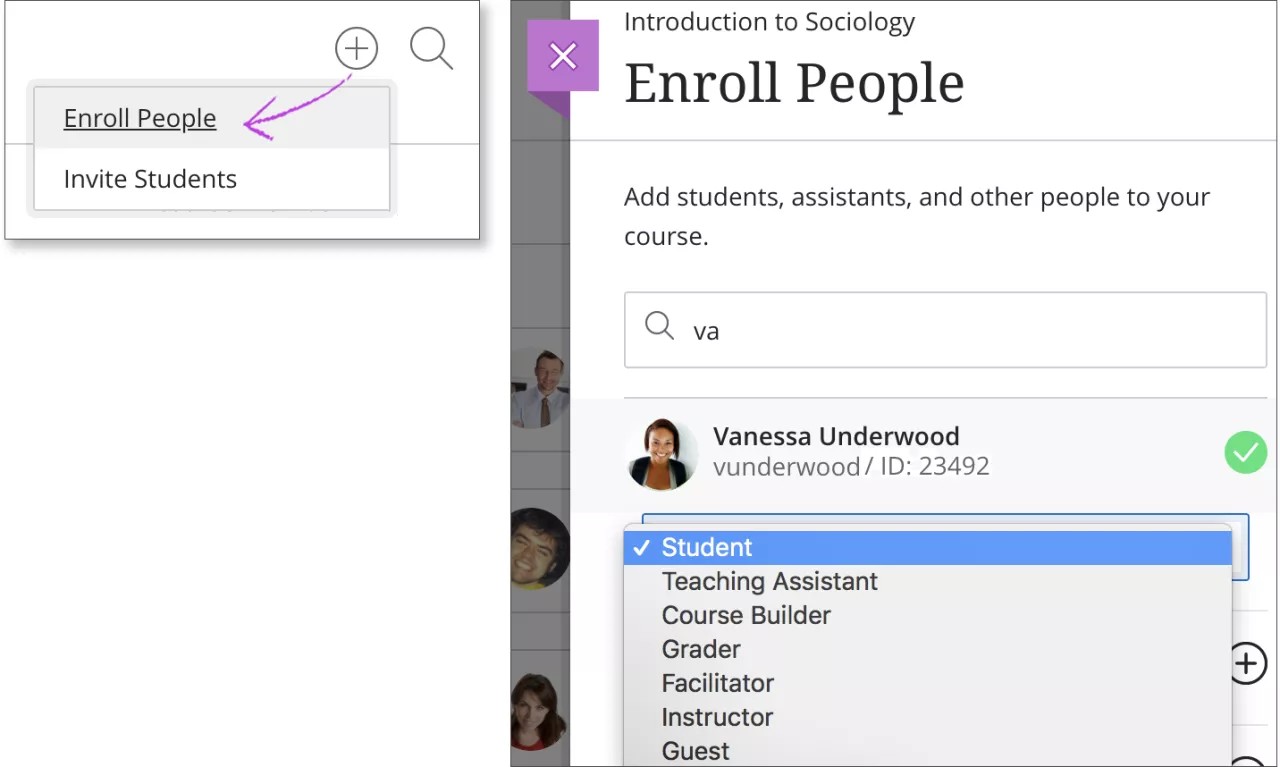
If allowed by your institution, you can enroll people in your course. Select the plus sign button at the top of the roster to open the Enroll People panel.
-
In the search box, enter a name, username, or at least two letters to reveal a list of matches. People already enrolled in your course don't appear in the search results.
-
Select one or more people. They immediately appear in the roster list. To reverse a selection, select a person's name again.
-
Choose a role for each selected person.
-
Select Save. The panel closes. At the bottom of the roster, a message appears with the names of the people you added.
Unavailable users at the system level can't be enrolled in courses and don't show in the search results.